Matches and transcription
Matches Panel
The Matches panel (CTRL-Tab) lists imported matches. Double-click a match (or press ENTER) to navigate through its moves. The m command resumes navigation in the last visited match.
The filter field, at the top of the panel (/ to go there, Esc to clear it), keeps only the matches where a player, the event, the venue, the tournament or the date contains the typed text. Filtering and column sorting are done by the database: the list loads in pages as you scroll, and the “n / N matches” counter shows the share loaded. Correcting a player, a date or a tournament in the list updates only the edited row.
When the list is empty, the panel offers Import… (Ctrl+I); with no database open it offers Open a database… instead, together with Back to the welcome screen. When the text filter emptied the list, it offers Clear the filter. The empty Stats, Collections and Anki panels offer the same buttons.
The user can:
browse through the moves of a match using the LEFT and RIGHT keys,
switch between games using the PageUp and PageDown keys,
display the move analysis (checker and cube) by pressing CTRL-L,
toggle between checker move and cube analysis with the d key,
see the actually played move highlighted in the analysis,
search among the positions of the match with the
sscommand (e.g.:ss E>80); Esc then returns to the move studied (see Search Panel).
The last visited position in each match is saved and restored automatically. Press CTRL-Tab or run the match command to show or hide the panel.
A row’s ⊕ button enriches that match from a file. There is nothing new behind it: re-importing the same match in another format already enriches it in place — the canonical hash recognises that it is the same match, and the analyses and comments of the second file complete the first. What the button adds is that it can be found: nobody guesses that an import is also an enrichment. The report that follows says which of the two happened — “enriched: 1” rather than “imported: 1”.
Each match can be exported as a Jellyfish .mat transcript via the ⬇ button in the match list or the Export .mat entry of the ⋯ menu of the match sheet.
Clicking a match opens its sheet. A header line gives the players, the final score (the winner in bold, their name on hover), the length, the cadence if there is one and the date; the tournament, round and venue appear on hover. On the right, the 🎞 icon of a match that has a video, the Review button and the ⋯ menu, which holds Export .mat, Edit the transcription and Delete the match. Next comes the summary of the match review, then a tab bar: Transcript, which lists the moves game by game (a click on a move takes the review there), Charts, Review, Details, Info and Stats. The chosen tab fills the whole remaining height of the panel and scrolls on its own, the header and the summary staying in place; when a tab has focus, the left and right arrows move to the previous or next one. The tab left open is still open at the next match. A tab with no content does not appear: a match with no analysis has neither Review nor Details, a match with no known loss or duration has no Charts.
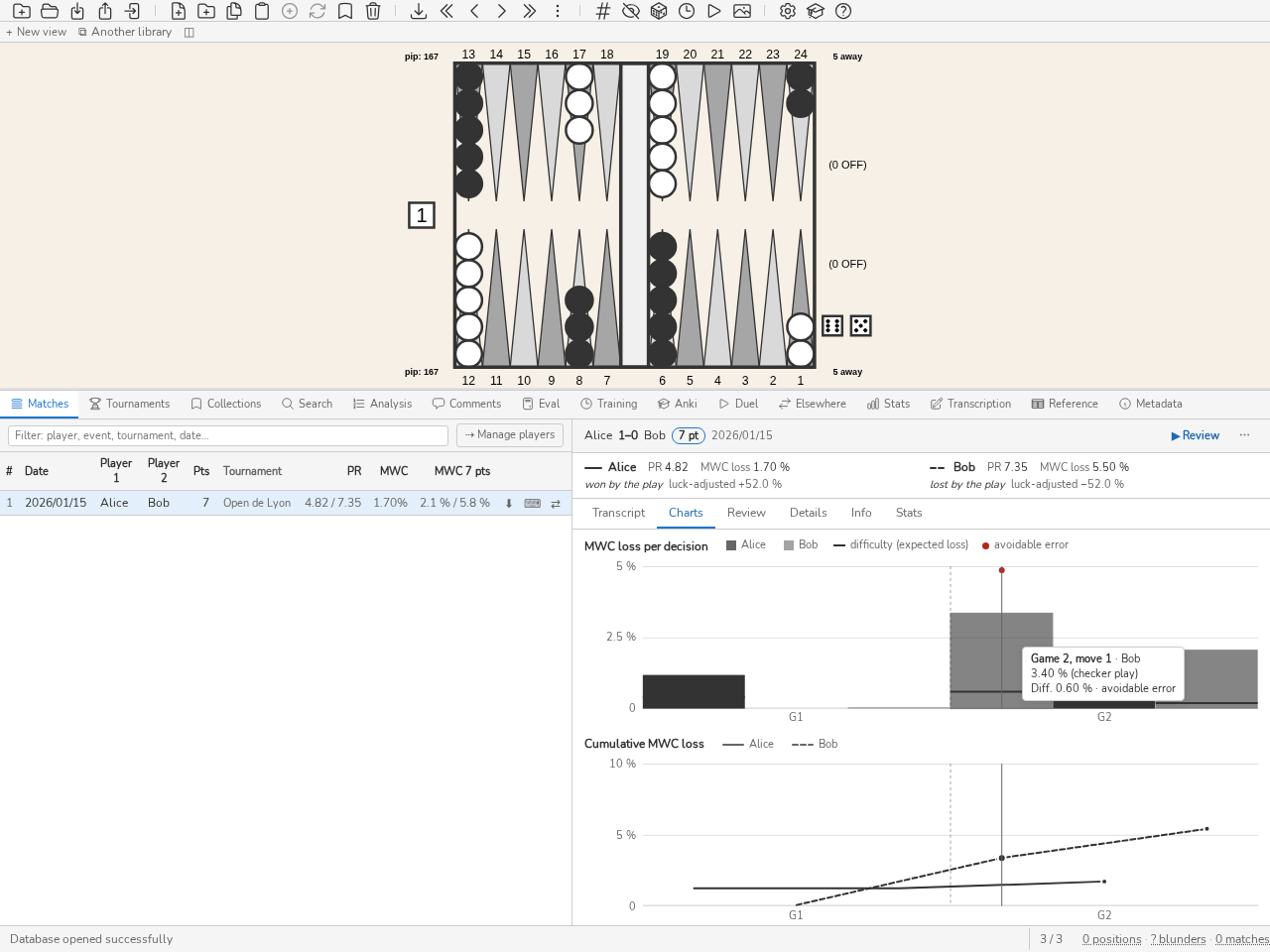
A match sheet: the header, the review summary per player, then the Charts tab, with a decision hovered.
Every move of the transcript carries its severity: ? for an error, ?? for a blunder, a coloured rule in the row’s margin, and the move’s cost in equity when hovering over the mark. The thresholds are the database’s own (Configuration), the ones the statistics count with. A move is judged as it was played: the same position played twice in the match receives two judgements. A move the analysis does not score carries no mark.
Each game’s header counts its marks, whether the game is expanded or not: you can see without opening it which game holds the blunders. Clicking a count loads those positions into the analysis panel.
When the match is analysed, the transcript adds the MWC column, the match-winning chances the decision cost, as a percentage: 0 for a decision with no loss, a dash for a decision the analysis does not rate or whose score has no value in the match equity table (money play, decision outside the statistics). A click on the MWC header sorts the plays of each game from the heaviest loss to the lightest, then the reverse, then restores the match order; unrated decisions come last, and this sort replaces the duration sort. The Charts tab shows two full-width charts on the decision axis of the duration chart: one bar per decision, then each player’s cumulative loss, which stops at their total (solid line for the first player, dotted for the second). Each chart has its title, its legend, its scale on the left and, under the axis, the number of each game (G1, G2…), a dotted line marking the passage from one game to the next. An unrated decision carries a small marker at the base of the bar, with no height. Hovering over a decision, or walking through them with the arrow keys (the Home and End keys go to the ends), marks it on all the charts and on its line of the transcription, and a tooltip gives the game, the play, the player and the loss; the tooltip is placed on the side where it fits whole within the chart frame, even in a narrow panel. A click, or Enter, takes the review there. The same goes for the duration chart. In each chart’s legend, each player’s name is a checkbox (by keyboard as well as by mouse): unticking it hides their marks on all three charts, the setting being shared, and hovering, clicking and the arrow keys then land only on the other player’s decisions (a click takes the closest visible decision). The last ticked player cannot be unticked, and every match opens with both players ticked. Outside the interface, match --format json adds decision_losses (one entry per play, mwc_loss being null for an unrated play), --format text an “MWC loss” line per rated play and --format summary the total per player.
Difficulty and avoidable errors. A loss says what a move cost, not whether the right one was hard to find. The Diff. column, next to MWC, gives the difficulty of the decision: the loss of match-winning chances that a reference player would suffer on average in the same position. This reference player does not play perfectly: it picks each option with a probability that is lower the more the option costs, π(i) proportional to exp(−Δᵢ/τ), where Δᵢ is the cost of option i relative to the best one, in normalised equity. The difficulty is d = Σ π(i)·Δᵢ, converted to MWC at the score and cube of the decision like the loss: it is expressed in the same unit, a percentage of match-winning chances. The options are the analysis candidates for a checker play; no double and double (against the best reply) for the player on roll with the cube; take and pass for the player receiving the double. The temperature τ is 0.025: the hardest two-option decision is the one whose gap is about 0.032, and a position with five candidates spaced 0.01 apart gives the average error of a player of about PR 6; this is a prior for a strong player, fixed before any results were examined.
How to read it: an obvious or forced decision has a difficulty close to 0 without any threshold setting it apart; a close decision, where several options lie within a few thousandths, has a large one. A loss well above the difficulty is a mistake the position did not excuse; a loss close to the difficulty is a mistake a good player would also make. A decision is an avoidable error, marked with a ! next to its loss and a dot above its bar, when its loss reaches the database’s error threshold and its difficulty does not exceed a tenth of it: on a two-option decision, the reference player would not make it once in ten times. On the per-decision chart, the difficulty is a horizontal tick on each bar: a bar that rises far above its tick signals an avoidable error.
The table of the Details tab gives, for each player, their total MWC loss (the one in the match list), the number of rated decisions and, over the decisions that have a loss and a difficulty: the total difficulty, the excess Σ(loss − difficulty), in MWC, which is what the player lost beyond the reference player (negative when they did better), the ratio total loss / total difficulty (1: they play like the reference player; 2: they lose twice as much) and the number of avoidable errors. The ratio is not given when the total difficulty is under 0.5%: on a match that is too easy it would only measure noise, the excess remains.
Why look at it: the PR and the MWC loss mix two things, the quality of play and the difficulty of the positions met. An opponent who creates complex positions raises the other player’s error; a pure race match lowers it. The difficulty corrects both effects: the excess and the ratio compare the player to what could be expected in their positions. For study, it sorts the mistakes: avoidable errors are lapses of attention or a rule badly known, to review first and often easy to fix; losses on difficult decisions are a matter of deeper work (rollouts, principles, reference positions) and weigh less in judging a match.
Uncertainty and limits: the difficulty depends on a player model and on τ, fixed once; changing either changes every figure. It knows only the candidates the analysis kept (a few for XG, according to its filters for GNU Backgammon): absent options weigh nothing and the difficulty is then a lower bound. It inherits the error of the analysis itself, especially at low depth. On a single match, the excess and the ratio rest on few decisions and vary a lot from one match to another: they indicate a trend, not a ranking. The difficulty is only computed for decisions whose loss is rated; elsewhere it is a dash. Outside the interface, match --format json carries difficulty and avoidable on each decision_losses entry and the per-player summary under difficulty_summary; --format text adds the “Difficulty” and “Avoidable error” lines, --format summary the difficulty, the excess, the ratio and the number of avoidable errors.
Match review. The review answers, for each player, the three questions one asks after a match: what do I review, did I lose because of the dice or the play, and do my errors come from haste or from a gap in knowledge? The thresholds were fixed before any results were examined.
At the head of the sheet, above the tabs, a summary places the players side by side (one under the other when the panel is narrow): the name, with the stroke that designates it on the cumulative chart, the PR, the MWC loss of the match and, for a finished match, the luck verdict in plain words (“won by the play”, “lost to the dice”…) followed by the adjusted result alone. Hovering over the PR gives its interval; over the verdict, the components of the adjusted result. The rest is divided between two tabs: Details gives the intervals, the loss brought back to 7 pts and the luck; Review, the decisions to review and the split of errors between hasty and considered ones:
PR and MWC loss scaled to 7 pts, with their 95% interval, computed by resampling the games of the match. The loss scaled to 7 points is the match’s loss put on the scale of a 7-point match (L₇, see Metrics and study tools): it serves to compare matches of different lengths, while the summary shows only the loss of the match itself. Three games are required; a shorter match shows a dash. A wide interval means one match is not enough to judge a level: compare it with your other matches rather than concluding from a single value.
Luck-adjusted result, for a finished match. The result is the outcome (100 % won, 0 % lost) minus the starting chances (50 % at 0-0); the net luck adds the luck of your rolls minus that of your opponent’s rolls, each roll converted to MWC at the score and cube of its position, like a loss. The adjusted result is the result minus the net luck. If it is positive on a lost match, the dice decided it; negative, the play did. The error gap (the opponent’s loss minus yours) is what the adjusted result estimates: the two figures agree when the luck is complete. Coverage is shown when some rolls have no measured luck (a file without luck, an unanalysed roll); with no measured roll at all, or for a money game, the line does not appear.
Three decisions to review: among your errors (the database threshold), those with the largest avoidable part of the loss, loss − difficulty — that is, the loss multiplied by how avoidable it was. An error the reference player would also have made is not worth a session: review first what was within reach. A click on the decision displays it, like a row of the statement.
Hasty and considered errors, when the match kept the decision times: an error played faster than the median of your decisions of the same type (checker or cube) in this match is hasty, the others considered. The median is your own, in this match: it does not depend on the pace, and with no link between speed and error the errors would split half and half. A hasty majority calls for discipline (slow down on these positions); a considered majority, for knowledge (study the family of positions).
The Details tab ends with the loss and difficulty table described above. match --format summary prints the same review, and the server serves it through /v1/stats.matchReview.
When the match kept the duration of its decisions (a match played against a bot), the transcript adds three columns aligned on the digits: Cube (the cube decision, taken before the roll or on the cube line itself), Play (the checker play) and Clock, the time the player on roll has used since the start of the match, this play included, whatever the sort. Under a cadence, the column becomes Clock left and gives the time left on the player’s clock after the play, computed as the Duel’s referee counts it (delay per turn, reserve brought back to zero on overrun). The match information and its header recall the cadence (preset, delay, behaviour on overrun) and each player’s time bank, brought back to the starting score when the reserve is counted per remaining point. A click on the Play header orders the plays of each game from longest to shortest, then from shortest to longest, then restores the match order; a cell without a duration (no cube decision that turn, or a play the Referee made alone) carries a dash, and those plays come last. The Clock starts at zero from the first play. The Charts tab begins with a summary that gives each player’s total, the mean per checker play and per cube decision, and, if the match has a cadence, a mark for the player whose reserve ran out first (the Duel records only that one); a chart places the duration of each decision over the course of the match. In review, the duration of the decision played is read discreetly under the analysis. Search filters it with tm>30 (in seconds), which combines with E>x: s tm>30 E>80 keeps the plays that were thought over at length and were wrong all the same, the duration and the error being those of the same play. The Stats tab, under the recurring errors, crosses time and error: for each player and each band of known duration (under 5 s, 5 to 15 s, 15 to 30 s, over 30 s), the number of decisions, the mean error and the share of blunders. A decision whose error is not recorded is counted without entering the mean.
The Positions column counts the distinct positions of those decisions and opens them with a click. The table and its links read every timed decision of the database, without the panel’s filter.
A match played here, born of a Duel, carries its origin in the Info tab of its sheet, under the Origin heading, on one line, even when it has no move: “Played here”, then, where it applies, “Lost on time” with the player whose reserve ran out under a time control that loses the match, or “Stopped before the end” for a Match a stopped Duel left unfinished, the time control, the player whose reserve ran out first and the Bot’s level with the gammonNet version whose policy it played. A click unfolds the start (the opening position or the chosen XGID), the revealed dice seed and its SHA-256, to compare with the fingerprint published when the Duel was created: if they match, the seed lets you recompute every roll without trusting blunderDB. A match that was not played here has no origin, and its Info tab does not have this heading.
The Info tab of the sheet recalls the match header. It adds what the source file says about the players and the session, when it says it — an eXtreme Gammon file always does: each player’s Elo rating with their experience in parentheses, the transcriber, the Jacoby and Beaver rules of a money session, and the program that wrote the file. This information is exported with the match. Re-importing a file already present gives it to a match that lacked it, without replacing anything the match already holds. The command-line match command shows it too. The match header and footer comments of an eXtreme Gammon file become the match’s comment, signed with the name of its transcriber, or XG if the file names none; the clock and the equity table are not imported. The sheet shows this author beside the comment, and the export copies it along; editing the comment signs it with Your name (settings).
The Source file line carries the ⟲ button when the match names one: it re-reads that file and rewrites the match’s positions, analyses and errors as a fresh import would, keeping everything entered since (tournament, names, player swap, comments, transcription, video and marks) and the analyses deeper than the file’s. A match that matches its file says so in the status bar; otherwise a confirmation gives the number of moves whose position changes and the share of analysed moves before and after; the status bar then counts the comments left on a position a collection, a card or a lesson keeps. The repair is refused when the file cannot be found, no longer holds this match, or when its moves do not tell which player of the file is which. The match repair command does the same, and match repair --list finds the matches that differ from their file.
A match transcribed from a video carries its source: an http(s) URL (YouTube, for instance) or a file path. The Video row of the Info section edits it: type a URL or a path then press ENTER, File… to choose a video, Detach to remove the source. A match that has one shows the 🎞 icon in the header of its sheet, and each decision that carries a mark of the video shows the same icon in its row of the transcript. Clicking the icon, or pressing v when the decision is the one under review, takes the video to one second before the dice fell: for a file, the video opens beside the board, or above the sheet if it has been put back in the panel, and [ and ] set its speed; for a YouTube source, the browser opens on the timestamped link. A missing file is relocated from the pane, and a format the webview cannot play is reported there with the packages to install (see Download and Installation). A match without a source does not change.
The Manage players button in the panel toolbar opens a window listing all the players in the database, each with its number of matches (clicking the number shows its matches in the panel) and its aliases. To merge, select the spelling variants of the same player, choose the canonical name to keep (type it, or click ✓ on its row), then merge. The window stays open so that further merges can follow; Close (or Esc) closes it. The merge creates one alias per variant: the matches keep the names of their files, but the statistics, the Players table and the pl"…" search read all the variants as a single player, and later imports record the canonical name. Clicking an alias (×) removes it and undoes the merge, as in the Corpus tab of the settings.
The star (☆) on a row designates the main player, the one the database belongs to, stored in the database and always at the top of the list. It fills immediately and shows the number of matches where he or she is player 2 (clickable, to see them), then Swap swaps them all at once: if one swap fails, no match is swapped. Each swapped match keeps its analyses, errors, comments, video markers, transcription and tournament. The main player is recognized under all of his or her aliases, and every later import, whatever the format, places him or her as player 1, like a finished transcription; a match played against gammonNet keeps its places. A match with an open transcription draft, or played in blunderDB, is not swapped: their number is shown separately.
A merge that touches the main player — an alias added to his or her name, or his or her name merged into another that designates him or her — swaps nothing by itself: the banner returns with the matches it leaves to swap, to be confirmed with Swap or dismissed with Remove, which removes the main player. As long as some remain, clicking the filled star (★) reopens this banner; otherwise it removes the main player, without swapping anything back.
When a match is open, an information bar appears above the board: it recalls the players involved (player 1 versus player 2) as well as the match context (event, location, round, date and match length, when this information is available). This bar is also shown outside match mode: when a studied position (from a search, a collection or a direct access) comes from one or several matches, it indicates its provenance — the first match concerned and, where applicable, a “+N” badge listing the others on hover. A position imported on its own, which no match references, shows nothing.
The Search and Eval tabs replace the board with a working board: a banner at the top of the board says so (“Search board”, “Evaluation board”), and the information bar is hidden while it would describe a position that is not on screen. Returning to the analysis restores the studied position.
When opening a database that contains matches, the Matches panel is shown right away and the review starts directly on the first position, so you can begin navigating immediately.
Note
A database can be opened for writing by only one window at a time. If you open a database already open in another blunderDB window, it opens read-only: navigation, search and analysis remain possible, but any modification is disabled and the title bar shows “[read-only]”.
Tip
Refer to Keyboard shortcuts for available shortcuts.
Transcription Panel
The Transcription panel (CTRL-SHIFT-T, transcribe or tr command) is where a match one has in front of one — a score sheet, a video recording — is typed in and turned into a match of the library. What is typed is a draft: it lives in the database, it closes and reopens, and it enters neither the statistics nor the searches until it has been saved as a match.
The panel opens on the library’s list of drafts: last modified, players, match length, number of actions, and the match already produced (# followed by its id) or the words “no match”. A click opens a draft, and the Drafts button in the bar comes back to the list. The New transcription button unfolds the creation form.
The list is walked from the keyboard too: DOWN and UP (or j and k) move the highlight, ENTER opens the highlighted draft, n unfolds the form. The first draft is highlighted on opening and it is the most recently modified one: picking up yesterday’s work therefore takes two keys, CTRL-SHIFT-T then ENTER.
The form asks for one thing only: the match length. The value 0 means a money session and brings up the Jacoby and Beaver boxes. The field opens on the length of the last modified draft, or on 7 when the database holds none. Player names are not asked for: the draft names the sides Player 1 and Player 2, and the list shows “Unnamed”.
Everything derived from what has been typed — the match length (or “Money”), the score, the Crawford mention when the current game is one, the game number, the state of the cube — its value, centred or in the name of whoever owns it — and the side on roll — is shown in the match bar, above the board: that is where the eye already is when one wonders who is on roll. The expected action is spelled out in the status bar: “Kévin’s dice”, “Alice’s answer to the double”.
The draft bar, at the top of the panel, reads in three groups. On the left, Drafts returns to the list. In the centre, what is used while typing: the board orientation, the two undo arrows, Video and Metadata. On the right, the gestures that take the draft out of itself and the ⋯ menu. In a narrow panel, the typing controls move to a second line.
Player 1 stays at the bottom of the board, whoever is on roll. A match being transcribed is a game unfolding: the roll changes hands at every half-move, and following it would flip the board from one turn to the next — the checkers just looked at would move to the top and the eye would make the journey again at every roll. Who is on roll is read from the dice, which change sides. The ⇅ button of the bar flips the board and shows player 2 at the bottom; it does not modify the draft, and the display comes back the right way up when the draft is closed. Not to be confused with the Swap players button of the Metadata pane, which swaps the two players in the document itself.
The Metadata button on the bar unfolds the draft’s header, at any time: the names of the two players — autocompleted from the players in the database —, the event, the location, the round, the date (today by default), the transcriber (the database’s user by default) and the tournament the match will be attached to when it is saved; left empty, a new match is filed, as on import, in the tournament named after its event. No field is required: a draft with no names saves and exports all the same, with empty headers. The Swap the players button exchanges the two names, gives every action to the opposite camp and turns the board around: it is the same match, read from the other side.
When open, the form takes the place of the entry: the dice, the palette and the candidates are hidden, the transcript stays visible, and the video stays in place. The same button, or Esc, brings the entry back.
The match length is changed in that same pane, at any time: the score, the Crawford game and the referential — money play when the length is 0, and the Jacoby and Beaver boxes then appear — are recomputed from one end of the draft to the other, and the actions recorded after the match was won are marked "past the end" without a single one being removed. The length is part of a position’s identity: after a save, changing it and saving again writes brand-new positions, to be analysed, and the old ones disappear as soon as nothing holds them any more.
Below the bar, the draft occupies three regions: the mouse-target palette, the candidate plays and the transcript. They are laid out according to the width of the panel. In a wide panel — the bottom dock — the three sit side by side, the palette on the left. In a medium panel, the candidates take the top and the transcript comes beside the roll triangle, in the room the triangle leaves to its right. In a narrow panel the three follow one another: candidates, palette, transcript — the triangle and the transcript do not fit side by side there without cutting the transcript’s second column off, and widening the dock by a few dozen pixels is enough to bring them together. In every case the rule is the same: nothing comes between the two roll boxes and the first candidate row, and at least five candidates can be read without scrolling anything.
The palette shows the two dice as they are entered; a click on them clears the roll, like BACKSPACE. A game starts with its first play, made by the winner of the opening roll: its two dice are typed as that roll, player 1’s die then player 2’s, and the higher one gives the play to its side, which plays both dice. The play is then picked among the candidates, like any other. Ties, rolled again at the table, are not transcribed; a first play typed as a double is recorded as it stands and marked “inconsistent dice”, since no opening roll is a double, and a cube double before the first play is marked “impossible cube action”. A cube action entered after the end of a game bears the same mark: it stays in the finished game, does not open a new one, and is deleted by hand.
As soon as the second die falls, every legal play of the roll is listed, ranked by the built-in engine, the first preselected. It draws nothing on the board until it is hovered or chosen. The list gives the play, its equity and its error against the best one: transcribing means recognising the play one saw, not judging it — the Evaluation panel is there for that. This ranking is an evaluation: it is shown, it is never written to the library. When the engine is unavailable the plays are listed unranked and the list says so at its head.
A roll with no legal play at all records the dance on its own: the turn passes to the opponent with no play to type. When the dancing roll does not matter, the f key simply says that the side on roll dances: it enters the first roll, non-doubles first, that does not bring them in from the bar. Off the bar, or against a home board that lets every roll enter, it enters nothing and the status bar says so.
The wheel selects the next or previous candidate, over the list as well as over the board: the eye stays on the board and the arrows scroll past, which recognises a play faster than reading its notation. A click on a row selects it, a double-click validates it.
An indicator, to the left of the roll cells — and on the theatre-mode bar —, says what typing does at the moment: Entry at the end of the document, Editing move N on an action already written, then the move ENTER validates and the effect of the digits. No key is blocked: on a written action as at the end, j/k and the arrows choose a line of the analysis, the board plays and the digits type the dice. In Entry, the preselected line — the first of the analysis — is drawn on the board, and the digits of the next roll record it before opening the next decision. On a written action, the digits retype its roll in place and ENTER validates the correction: the cursor then moves to the next decision, and the positions that follow are recalculated. END returns to the end of the document.
The triangle of the twenty-one rolls sits under the two roll cells, beside the keyboard and not in its place: two digits remain twice as fast as a click, and the triangle is there for whoever transcribes with a hand on the mouse. One cell per roll, never two: 3-1 and 1-3 are the same roll.
Every move played on the board starts with the roll, typed on the keyboard or clicked on the triangle: with no dice entered, the board plays nothing. Once both dice are entered, the board is constrained to the legal plays of that roll — at the end of the document as on a reviewed action whose cursor has loaded the dice. A click on a checker plays it with the left die, or with the next one when the first cannot; a drag puts it on its destination. Played dice turn grey, a click on the unplayed dice swaps them, and Backspace — or a right click on the board, which takes back the whole move — undoes the move. Each step played keeps in the list only the candidates that contain it, the first of them preselected: this is the gesture for the distant move, where going down to the twelfth candidate costs thirteen keystrokes. From the first step, the arrows of the selected candidate leave the board, so as not to mix with the move being played; they return when the move is taken back or recorded.
The completed move is recorded only by a validation: a click on the greyed dice, ENTER, or the next roll — a digit or a cell of the triangle — which records it first with the dice as they were typed. On a reviewed action, it replaces it.
An illegal move is transcribed as it was played, with no button and no change of mode. A drag that no legal play offers puts the checker down where it is released — even from a point no legal play leaves from, provided it holds a checker of the side on roll. The move then leaves the rules: the rest is played freely, by click as by drag, the candidate list gives way to a line that says so, and validation writes the dice entered, the steps and the board reached. Backspace undoes the last step; undoing the only step outside the rules brings the list back.
The move can also be typed on the keyboard, in the transcript. A double-click on the cell of a move — or of a dance, of an unrecorded move — turns it into a field, prefilled with its dice and its notation, 62: 24/18 13/11. The roll and the move are corrected there together; without dice: in front, only the move is typed — 13/7 8/7*, bar/22, 6/off, 13/7(2) — and the dice of the cell remain. ENTER records both in place of what was written, ESC closes the cell without writing anything. Unreadable dice (72:) or a text that names no move leave the field open, and the status bar says so; a move that is illegal for these dice is recorded and marked, never replaced by another. The e key opens the cell of the cursor in the same way. The dashed cell of the entry in progress opens the same way, as soon as both its dice are entered.
A move entered by the free drag or by notation that happens to be legal stays an ordinary move — the comparison is made on the board reached, never on where the gesture came from; otherwise it is marked “illegal move” in the transcript, and the .mat export warns before writing the file, without ever refusing.
The board an illegal move leaves holds for the position it was played from. When a correction higher up in the transcript changes that position, the move’s steps are replayed from the new one, and every position that follows carries the correction.
The board’s arrows are those of the move written in the decision under the cursor, in grey, replayed on the position it has. A step that no longer plays there — a source point left empty by a correction higher up, a point held by the opponent, a checker left on the bar, a bear-off with a checker outside the home board, a length no die pays for after a corrected roll — still leaves from the point written, in dashed red, its source point circled, and the cell carries the “illegal move” mark. A move the replay judges illegal although no step is illegal on its own turns red as a whole. The engine’s move never takes its place: a line of the list draws its arrows, in blue, only when hovered or chosen with the wheel, the keys or a click.
On the dice line, the Double, Take, Pass, Resign row takes the four cube gestures to the mouse: they are, with the two dice, the five possible answers to a single question — what did the side on roll do? It says whose turn it is: the side on roll announces — double, resign — or the other side answers — take, pass; never all four at once, and a button whose gesture would answer nothing stays off. The keyboard, for its part, never refuses anything: a button that is off is a target one does not offer, not a forbidden gesture. “Resign” records nothing yet: the row becomes the three levels — single, gammon, backgammon — and “Cancel”, which doubles the ESCAPE key; on the keyboard, r then 1, 2 or 3, ENTER meaning single. The cube drawn on the board is the second target of these gestures: a click on it offers a double. Facing an offer it does not answer — take and pass are two symmetric answers and live together in the row, one click each.
The status bar says what the draft expects, in a word: the dance recorded on its own, a game’s first play, the answer expected to a double, the level expected after a resignation, the correction in place, the move “to review” whose roll has changed. It also answers there the gestures that have nothing to do — “nothing to undo”, “no action under the cursor” — for a second and a half. The inconsistency an action left behind it is flagged at the head of the transcript instead, where the offending cell is.
A game ends with a pass, with a resignation or by bearing off the fifteenth checker (single, gammon or backgammon, multiplied by the value of the cube). The score, the Crawford game and the end of the match then appear in the match bar, and the next game’s first play is expected.
A game’s score is the one the previous games give, unless it was declared otherwise at the table. A double-click on the score in a game’s header, in the transcript, turns it into a prefilled field: type the score the game was played at — 3-2, 3–2 or 3 2 —, ENTER records it, ESCAPE closes the field without writing anything, and a field emptied then confirmed goes back to the derived score. The game is played at that score: the Crawford game, the end of the match and the following games follow from it, and both the saved match and the .mat file carry it. A score that differs from the derived one is marked, the tooltip gives the derived one, and the game’s first action carries the inconsistency “inconsistent declared score”. In money play there is no score to declare.
A transcript taken up mid-match can start after the Crawford game. When the first game opens with a player one point from the match, a Post-Crawford box appears in its header: checked, that game is not the Crawford game, the cube is in play there under the usual rules and no Crawford game follows. Unchecked, or with no player one point from the match, the Crawford game is derived from the score as usual. The saved match carries the declaration, and the .mat file writes it in a ; [Crawford "PostCrawford"] header line that blunderDB reads back; gnubg ignores it and counts that first game as the Crawford game.
The transcript occupies the right half of the panel: one column per player, one row per turn, the cube action and the end of the game in the column of whoever acted. The cursor’s cell is framed; moving the cursor brings the board back to the position of the action aimed at and lists its candidates, with the play that was recorded selected. An inconsistency (illegal move, double turn, impossible cube action, action past the end of the match, inconsistent dice, unrecorded move, inconsistent declared score) decorates its cell; the tooltip gives the rule broken and what is at fault (“cube: Bob does not hold it”). The unrecorded move is the case of a .mat file read back: gnubg writes ??? there when it did not keep the play, the roll is known and the play is not, and putting the cursor on that cell offers the plays of that roll to fill it in. A double turn leaves an empty cell, framed in dashes, in the column of the side whose turn is missing: the cursor stops there, a click takes it there, and that is where the missing turn is typed — a deleted decision, for instance. Games fold away; the cursor’s is open.
What is being typed is drawn in the transcript, in dashes, in the exact place where it will be written: the dice as they come in, the notation of the play as soon as it is selected, and in the column of the side the action belongs to. A correction covers the cell it replaces, an insertion opens a cell between its two neighbours, a fresh entry appears at the bottom of the game in progress. Nothing is written into the draft before the validation; what is read and what the document will say never diverge.
Correcting is typing on the cell you are on. With the cursor on an action, a digit starts its roll again in place, and the four cube gestures count as corrections too: on a pass, t — or the Take button — writes a take in place of the pass, with no need to delete it and then insert. The game then takes its course again: a cell opens just after the take, on the doubler’s side, and the rest of the game is typed there as usual, inserted in front of the next game’s first play, until the game ends. The same keys fill the cell an insertion has just opened: i then d inserts a double in front of the action aimed at. Announcing it, that first play keeps the score its game started at: if the end of the resumed game gives another one, the difference is marked.
Going back to the last action is going back to where the transcription is being written. A digit typed on it still corrects its roll, but once that roll has been typed again, the next digit validates it and opens the following decision; ENTER validates it likewise. The following decisions are then added after it, as the first time.
Typing another roll on the first play of a game decides again who starts: player 1’s die is typed first, player 2’s next, and the higher one wins — the big die first, the play goes to player 1, at the bottom of the board; the small die first, it goes to player 2, at the top. The new roll’s first candidate is preselected and the play is to be reviewed. Typing the same roll again, in either order, changes nothing. To give the first play to the other player without changing the roll, use s: the order of the dice follows the side, and a first play made by the side that order does not name is marked “inconsistent dice”. The rest of the game keeps its sides.
An insertion in the middle of the document goes on inserting: the validation opens an empty cell after it, and the next action is inserted in its turn instead of overwriting the one that follows. That is what makes it possible to catch up the whole end of a game — a pass that should have been a take — without losing what has already been typed of the next game. The end of the game, or moving the cursor, puts an end to the insertion: the cursor then lands on the next game’s first play.
Del (or x) removes the decision being edited and steps back onto the previous one, ready to be corrected: on a written cell, the action disappears; on an open insertion or a roll typed at the end of the document, it is the entry that is abandoned. Pressing Del repeatedly thus goes back up the transcript, erasing as it goes. The actions that follow keep their side, and the double turn a deletion leaves is marked without the cursor being brought back to it.
A right click on a cell opens the corrections of that action — insert before, insert after, delete, change side — and brings the cursor onto it on the way; these are the same gestures as the i, a, x and s keys, and the browser menu is suppressed only there. They have no buttons elsewhere: a button acting on “the action under the cursor” would aim at a cell one may not see, where the right click names its own.
The draft bar carries its only two exits, at the far right, after the “⋯” menu. “Finish” (CTRL-ENTER) writes the match to the library and releases the draft; analysis of the new positions alone starts right away, with its progress and its cancellation in the status bar. “Abandon” deletes the draft without a match; confirmation is asked only for a draft that has never been finished, since it takes away everything written in it. Next to them, the bar says what Finish will do — a new match, or the replacement of match #n. It says nothing about saving the draft itself: it is written to the database after each action, and returning to the list leaves it to be resumed later.
The ⋯ menu of the bar holds “.mat text”, which opens the Jellyfish file as it would be written, in a window wide enough for its columns to stay aligned, with a button to copy it, and “Export .mat”, which writes that same file to disk. The two arrows ↶ and ↷ undo and redo, like CTRL-Z and CTRL-SHIFT-Z.
If the analysis of a transcribed match was interrupted — the application closed while the batch was running — the status bar says so the next time the database is opened and offers to finish it. Nothing is kept about that interruption: the offer comes back for as long as positions remain to be analysed, and the batch that restarts covers only that match, never the whole library.
A draft that carries inconsistencies is finished all the same, after a warning: nothing is refused. An illegal move is exported as it was played, with the warning that gnubg and XG will flag it ("Invalid move") and diverge afterwards.
To correct a match in the library, the ⌨ button in the match list or “Edit the transcription” on its card opens a draft from that match — or reopens the one already open on it: one draft per match. Finishing this draft replaces the match under the same identifier; the positions of unchanged actions keep their comments, analyses and cards. An imported match (XG, GnuBG, BGF) carries analyses and comments that a .mat does not: before opening, a dialog says up to how many, and that finishing the draft may lose them.
A match can also be transcribed from a video. The Video button in the draft bar opens a menu: Local file… to choose a video on disk, YouTube link… to paste an address in the field that opens in the menu, and, set apart, Remove video to remove the source. The menu carries only the source: theatre mode and the video’s placement are set by the buttons in the bar above the video, visible as long as a video is loaded. ECHAP or a click elsewhere closes the menu and gives typing back to the panel. While no source is attached, the panel stays as described above: no pane, no extra key. Once a source is attached, the button shows its short name — the file name, or “YouTube” — and the video is shown beside the board. A file that cannot be found is relocated from the video with Choose the file…. On a YouTube video already attached, YouTube link… opens on its address, selected: a paste replaces it. A reopened draft finds its video paused where it was left on this machine, failing that a few seconds before its last time mark; the cursor stays at the end of the transcript, ready for typing, and follows the playback only once it enters another action.
The video beside the board. As long as a video is open, the board area is shared: the video on the left, the board on the right, separated by a vertical bar that you drag to enlarge one or the other; the width stays the same from one session to the next. The video keeps its proportions and fills the space it is given as well as it can. The button in the bar above it puts it back in the panel, above the transcript, and brings it back beside the board; this choice is also remembered. In the panel, the height of the video is set by dragging the bar below it, without ever pushing the input out of view. Moving from one place to the other does not restart a file: playback continues at the same instant; a YouTube video resumes at the instant where it was, paused. Clicking in the video, on its controls or on the separator bar leaves the keyboard to the panel: the input keys, the video keys and CTRL-LEFT / CTRL-RIGHT, which rotate the board, keep their effect.
The side of the video. The video starts on the left of the board; it can move to the right. The ⇄ button, next to the one that puts it back in the panel, switches side with a click. You can also take the small handle at the top of the video and drag it: the two halves of the area light up, and releasing over one puts the video there. ESC, or releasing outside the area, cancels. The board itself does not move: dragging on it moves the checkers. The side is remembered from one session to the next, and the width stays that of the video, whichever side it is on. The handle and the button leave the keyboard to the panel.
Theatre mode. To follow the match in large, F11 or the button in the bar above the video, left of the one that puts it back in the panel, put the window in full screen and give the whole space to the video. A small board floats over it, in the bottom-right corner: it shows the position of the transcription, the dice entered, the move in progress on the board and the arrows of the main board, whose notation shows in its header. The move is played there as on the main board: click a checker, drag, click the dice to swap them or confirm, right-click the board to start over. It is moved by dragging it — by its header once the dice are entered, the board then playing the move; one button of its header gives it three sizes, another folds it into a tab that reopens it. Its place and size are remembered; folded, it reopens the next time theatre mode is entered. The keyboard stays the panel’s: the dice, the candidates, the validation, the cursor and the video keys (SPACE, [, ], …) keep their effect, and neither the board nor the buttons take the focus. Since the row of cube gestures is hidden there, r opens over the video a small window with the three levels of resignation: 1, 2, 3 or a click choose them, ENTER means single, and ESC cancels it without leaving theatre mode. F11, ESC or the button at the top right leave theatre mode and give the window back its previous state: in the theatre, ESC is the way out, and BACKSPACE clears the dice entered. Removing the video, leaving the draft or changing tab ends it too. The player has no full screen of its own, YouTube included: only theatre mode changes the screen. The mode exists only in Transcription, with a video attached.
With a video, each new action carries time marks: the instant of the roll, set by the first dice key, and the instant of the action, set by the validation, both read from the video at the time of the gesture. An in-place correction does not touch the time marks. Only an explicit validation sets the instant of the action: ENTER, a double-click on a candidate, or the move completed on the board. The next roll digit, or a cube gesture, also validates the move, but sets no instant: the move is left without an action instant rather than receiving a wrong one, and the status bar reminds you of it. A move completed on the board without dice typed beforehand has no roll instant. To timestamp the checker decision, validate with ENTER at the moment the move is finished on screen. v sets afterwards the current instant as the action instant of the cursor, SHIFT-V as the roll instant. SPACE plays or pauses the video; SHIFT-LEFT and SHIFT-RIGHT move it by 5 seconds, CTRL-SHIFT-LEFT and CTRL-SHIFT-RIGHT by one second. [ slows the playback down and ] speeds it up, in steps of 0.25 between 0.25× and 4×; a YouTube video only offers the speeds of its player, up to 2×. The speed is shown in the corner of the video when it is not 1×, and a new source starts again at 1×.
A video filmed sideways is straightened with the ⟳ button of the video bar, also present in the theatre mode bar, or with o: a quarter turn at each press, from 0° to 270°. The picture stays whole, in a file’s video as in the YouTube frame. The angle is kept for the draft, on this computer only; it is not written to the database.
The durations of decisions are derived from the time marks: the checker decision runs from the roll to the end of the move, the cube decision from the previous action to the roll, a double or a response from the previous action to its own. A cell that carries a time mark shows it with a discreet dot; its tooltip gives the roll, the move and the duration (“roll 12:34, play 12:51, 17 s”), and the analysis panel shows the duration of the cursor’s action as for a match played in Duel. The time marks out of the video’s order, as few as possible so that the others move forward, are flagged like any inconsistency and leave the durations that depend on them unknown. Placing the cursor on a cell (click on the play or on its duration, h, l) brings the video one second before the roll of that action, or before its action if the roll has no instant; a paused player stays paused.
As soon as the draft has a video or a timecode, the transcript gains a time column to the right of each player: the duration of the decision, in seconds (in minutes and seconds beyond one minute), followed, after a middle dot, by the cube decision that precedes the roll. A play without an action instant is not left blank: its duration is estimated from the roll to the first instant of the next play (its roll, or a cube gesture), and shows as a measured duration; its tooltip says it is estimated. It is an upper bound, which includes picking up and throwing the dice. No cube decision is estimated: without the previous play’s action instant, its duration stays unknown, and the status bar then suggests v on that play to measure it. During playback, the cursor follows the video through the part already timed: each action covers the video from its roll, or failing that from the previous action, up to the start of the next one, and the cursor lands on the action the playback enters; past the last timecode, it returns once to the end of the transcript. It moves neither while typing nor while the video is paused, and this move does not enter the undo history. Placed by hand, the cursor stays on the chosen action as long as the playback has not left it: click a play without an action instant, start the video, press v at the end of the play, and that play receives the instant. On the last action, which has no end, it stays there for ten seconds after its roll, then returns to the end of the transcript: the digits open the next roll there, and the indicator says so.
The application does not decode the video itself: the formats played are those of the webview. A format it cannot play, or a file for which the webview returns no information after ten seconds, is reported in the pane, with its container and, on Linux, the GStreamer plugins to install. An H.264 and AAC MP4 needs gst-plugins-good (MP4 demuxer, AAC parser), gst-plugins-bad and gst-libav (H.264 and AAC decoders): on Arch, gst-plugins-good gst-plugins-bad gst-libav; on Debian and Ubuntu, gstreamer1.0-plugins-good gstreamer1.0-plugins-bad gstreamer1.0-libav; on Fedora, gstreamer1-plugins-good gstreamer1-plugins-bad-free gstreamer1-libav (the latter comes from RPM Fusion) — see Download and Installation.
A video that freezes — a seek that never lands, a still image during playback — is reloaded after three seconds, then resumed at the requested instant, at the same speed, playing or paused as before. After three reloads to no effect, the pane says so and offers to retry.
A badly multiplexed .webm or .mkv file freezes the video on some seeks: a group of pictures in the file starts with a non-key frame, which the webview cannot decode on its own. Files downloaded by yt-dlp can be like this. When such a file is opened, blunderDB reads the file’s index (a few kilobytes per group) and, if it finds faulty seeks, the pane says so with the command that repairs the file without re-encoding it, ready to copy:
ffmpeg -i 'ronde 4.webm' -map 0 -c copy -cluster_time_limit 30000 'ronde 4.remux.webm'
The command writes a copy beside the original; then attach that copy to the match or the transcription. The pane offers the same command when it gives up after its three reloads on a .webm or .mkv file.
Tip
Refer to Keyboard shortcuts for available shortcuts.