Analysis, comments and search
Analysis Panel
The Analysis panel (CTRL-L) displays the analysis data for the current position, imported from eXtreme Gammon (XG), GNUbg, BGBlitz, or gammonNet. It shows the best alternatives (checker moves or cube decisions) with their equity values and corresponding errors. The d key toggles between checker and cube analysis. During match navigation, the actually played move is highlighted in the list of alternatives. Press CTRL-L or run the list command to show or hide the panel.
A position without analysis says so, with an Evaluate button that opens it in the Eval panel.
The toolbar’s Challenge button, placed after the pip count one (key m), lets you commit to an answer before seeing the analysis while browsing positions: search results, a match review, a review of your mistakes. When on, it covers the panel’s whole analysis, checker play and cube, with a grey area; a click on the area reveals it. It comes back on every change of position. The challenge is a display mask: revealing records nothing in the database. The setting lasts until blunderDB is closed, like the pip count one. In a match review, the challenge also hides the marks, losses and difficulty of the move list; those of the move shown are revealed with its analysis.
Under the tables, a sentence sometimes says what the played decision cost and why: “You lose 120 mp: the move played leaves three blots where 13/7 8/7 leaves only one.” It comes from six measurable rules — exposure, a home point made or missed, gammon chances given up, a safety that costs more than it earns, and the two directions of a cube error (doubling too late or too early, taking too loose or passing too tight).
The rule that matters is silence: the sentence appears only when a rule applies confidently, and on an error past the threshold from which the engines agree it is one. The rest of the time there is no sentence — no empty frame, no “we do not know”. A wrong explanation costs more than none: it teaches something inaccurate.
The same sentence goes with the error where you have just made it: on the back of an Anki card, under the revealed analysis, and in the quiz verdict of the Decision exercise, under the cost in mp. The same rules of silence apply there: a right move, or an error that no rule explains, adds nothing.
When a position has been judged by several engines, a strip at the top of the panel puts them side by side: one line per engine, with its depth and its answer — the cube verdict, or its own best move. It says first whether they agree, and it is the disagreement that justifies it: “XG says double, take; gammonNet says no double” reads at a glance, where two tables had to be compared diagonally.
An engine’s best move is the best of that engine: the candidate list is sorted by equity across all engines, so its first entry is nobody’s best move in particular.
The strip appears only when there really are several engines, and it exists in this panel alone: the Eval panel presents one decision, the embedded engine’s (ADR-0017), and a comparison would have no place there.
Moves are written as they read on the board, here as in the Eval panel: the least advanced checker moves first, and a checker that chains several dice is written only once — a 64 played with the same checker reads 24/14, and 24/14* if it hits on arrival. The detail of the chain only reappears when it says something more: a hit on the way keeps its intermediate point, 24/18* 18/14, without which the hit on the 18 would vanish from the notation.
An imported analysis’ equity follows the same rule as the Eval panel: the column states its own referential, “Equity (money)” or “Equity (match)” depending on the score of the analysed position, never a plain “Equity” silent on the scale. The Jacoby and Beaver rules active on a money-game position are also shown, in badges under the cube decision table.
Rollouts
The Analysis panel can roll out a position: play hundreds of games from each chosen move, or from each cube action, to tell apart two choices that the direct evaluation barely separates. In the candidate-moves table, Ctrl+click adds or removes a move from the selection and Shift+click extends it to the clicked move; a plain click selects a single move, as usual. A right-click on the selection — or on another move, which becomes the selection — opens a menu whose Rollout (Standard) entry immediately starts the rollout of the selected moves with the chosen setting. On a cube decision, the right-click rolls out the whole decision. The panel’s Shift+R key does the same (with no selection, it rolls out the best candidates of the position), as does the rollout command (alias ro). During the rollout, a thin bar under the table follows the games played; Cancel, the Cancel the rollout menu entry, Escape or Shift+R again stop it without writing anything. The setting — Fast, Standard or Free — is chosen in the gammonNet tab of the configuration (see configuration).
The same menu offers Copy position and analysis, the image CTRL-X CTRL-X copies: the board and the top of the move list, or the whole cube analysis. As soon as a move is selected, a second entry, Copy position and selected moves, is added: the image keeps only those moves, in ranking order, each preceded by its rank among all candidates and with its error from the best move of the position, not the best of the selection. On a cube decision, only the first one is shown. The cells of the analysis tables cannot be selected as text: selection clicks leave no highlight on them.
The result is stored beside the analysis, never in its place: an imported analysis is not modified. Each rolled-out move carries its result in its own row of the table, in a Rollout column that appears only when the position has a rollout: the equity and the half-width of its 95 % confidence interval, on the scale of the equity column. Hovering over the cell gives the detail: the standard deviation, the JSD (the gap to the best play in standard deviations of the difference: from the limit on, the play is decided and is no longer played), the number of games and the Configuration — the engine and the full signature of the parameters: two rollouts with the same signature are the same numbers. The rollout stops as soon as the plays are told apart. The rollout of a cube decision, which has no move row, is shown as a table under the decision. A rollout plays the cube inside its games: the ranking is reliable, the absolute equity a little less so, which the block recalls. It does not play the beaver: its double, take row is that of a plain take, even on a money position under the Beaver rule, where the direct analysis counts the beaver. A position that is not in the database can be rolled out but is not stored.
The ro search command rolls out, one after the other, the positions of the displayed list — search results, match or collection — that do not carry this rollout yet; a confirmation gives the total before starting. Each position is written as soon as it is finished: cancelling keeps what is done, and running again resumes where it stopped. Progress survives closing the panel.
A database opened read-only, because another instance of blunderDB holds it, immediately refuses a rollout that would be stored: a message says so before the first game is played.
Comments Panel
The Comments panel (CTRL-P) shows, adds and edits the comments attached to the current position. A position may carry several, written by different people: all of them are shown as a thread, most recent first, each with its author’s name, and yours come first. Comments imported from XG files are automatically attached to the matching positions. Press CTRL-P or run the comment command to show or hide the panel.
The name attributed to your comments is set in the preferences, Interface tab, Your name field; when empty, your comments carry no author. Comments from an XG import are attributed to XG, those from a match file to its transcriber. Rewriting a comment attributes it to you. The au"Alice" search keeps the positions that Alice has commented; outside the interface, blunderdb comment add --author writes a comment attributed to that author and blunderdb comment list reads them back (see Command Line Interface (CLI)). This name is free text: it attests nothing, unlike the signature described below.
Every comment that came out of a file carries a provenance badge (XG, GNU BG, BGF, or imported when the provenance was never recorded). Comments you wrote carry none: that is the ordinary case, and marking every line would be noise. Editing an imported comment makes it yours: after the edit, the sentence is yours.
That distinction shows elsewhere: deleting a match no longer destroys a position you had written on. A note lifted from the source file does still go with the match that brought it in.
A comment received in a database exported with a watermark carries the signature of its issuer: the thread shows “comment by issuer” followed by the fingerprint of their key, preceded by ✓. Two people can have the same name, not the same fingerprint: compare it with the one the issuer gave you.
A comment that no longer matches what was signed is kept but marked ⚠ unverified: text or author modified in the file, comment moved to another position, or position whose identity has been corrected since. The signature indeed covers the identity of the position: when blunderdb repair resets the Crawford sentinel of a position (and merges it with its twin if needed), or when a match repair moves your notes onto the corrected position, the signed comments it carries no longer verify, although their text has not changed; blunderdb repair reports the number. A signature that blunderDB cannot read is shown as ⚠ unreadable signature. Editing a signed comment removes the signature: the sentence is then yours.
A comment received from another database keeps its provenance: a note its author had written keeps its position when a match is deleted, like yours; a remark that came from an XG file keeps its XG label and disappears with the match. This applies to a database exported by a blunderDB version that already signs comments; coming from an older file, a comment carries the label imported and disappears with the match. blunderdb comment list gives the provenance in its Origin column and the signature in its Signed by column.
The trash
Deleting a position, a collection, a comment, an Anki card or a match goes through a trash: the delete does happen, but a copy of what disappears is kept for thirty days. The trash command opens the window that lists them, each with Restore and Delete, and an Empty the trash button.
A restored position comes back with its analysis and its comments — returning it bare would be a restore in name only —, its “studied” mark and the training answers given on it. It takes back its old number; if the same position has been saved in the meantime, that one is kept, since a position exists only once: it receives the mark, the answers and the comments it lacks, and keeps its analysis if it has one. If its number is taken by another, it gets a new one. A collection comes back with its list; the positions it contained were never deleted — a collection is a view onto them.
A deleted match takes its games, its moves, their analyses and the positions nothing else holds, with the notes from the source file: the trash keeps all of that. Restored, it comes back under its original number and import date, with its games, its moves and its statistics, and its import’s journal names it again; the positions the delete purged come back as a restored position does, those that stayed in the library stay as they have become. It takes back its place in its tournament; if the tournament has been deleted, it comes back outside any tournament. It takes back its Direction slot if that still exists, pits the same players against each other and is free; otherwise it stays with the director and the match comes back without it. In these cases, the status bar says so. The restore is refused, and the entry stays in the trash, if another match holds its number, or if a match with the same file fingerprint has been imported in the meantime; a match without a fingerprint, typed in or played in blunderDB, is not compared that way.
Anything older than thirty days is dropped by the vacuum command, never on opening a database: not running vacuum is keeping everything.
Note
The trash does not travel: an export does not carry it.
Search Panel
The Search panel (CTRL-F or TAB) filters positions using freely combinable criteria: checker structure, cube decision type, error magnitude, dates, tags, etc. The TAB key simultaneously opens the search panel and the position editor, allowing a checker structure to be defined directly on the board.
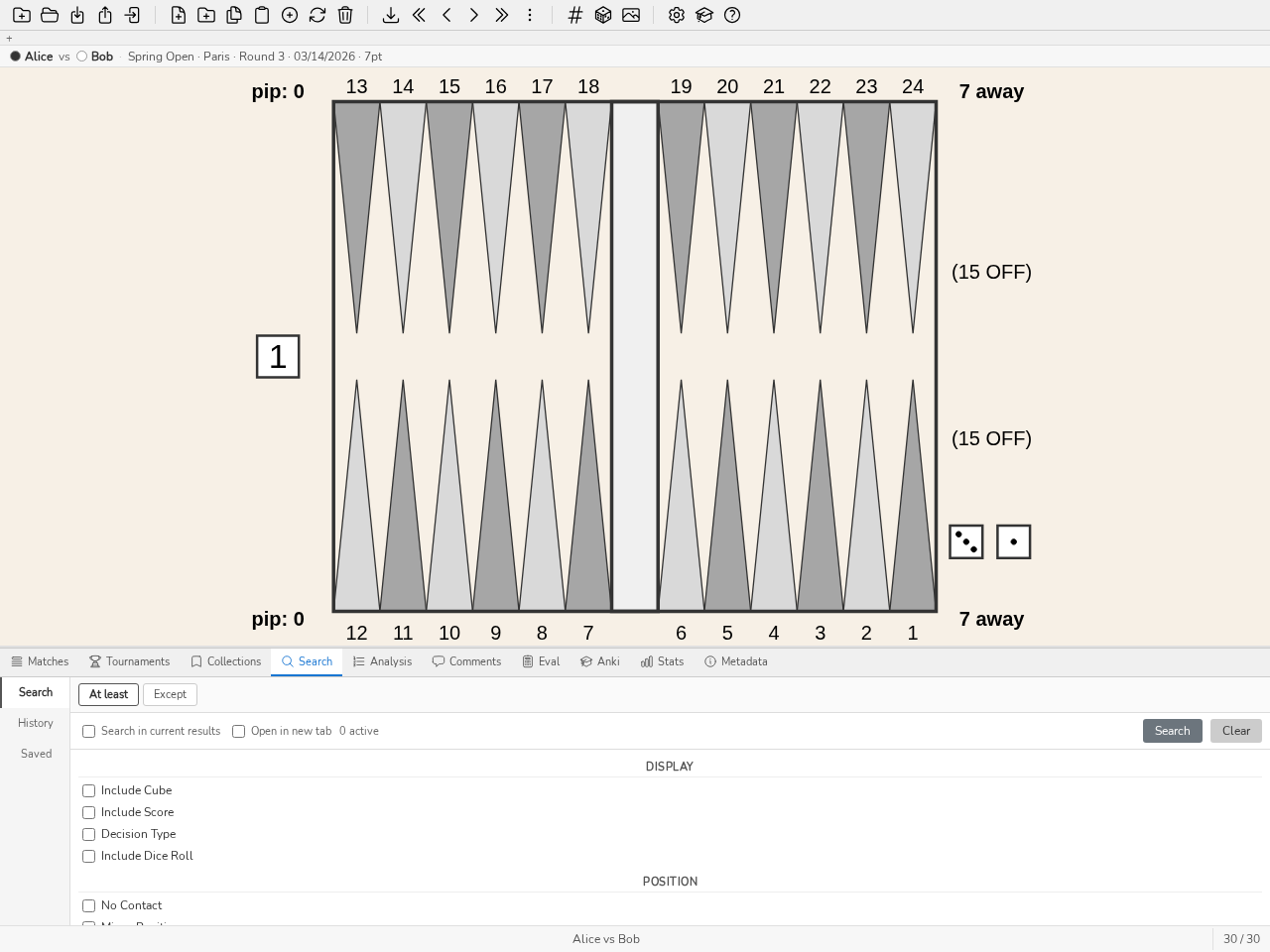
The Search panel: numeric filters, checker structure on the board, At least / Except tabs.
Filters are set in the Criteria sub-tab. When a search finds nothing, the panel says so (“No position matches”) with a Clear filters button, rather than leaving it to the status bar.
To search among the positions on screen, use the ss command followed by filters (e.g.: ss nc, ss E>40). ss searches the list on screen: the results of the previous search, the open collection or the positions of the match under review, whether the command is typed directly or from the search panel (TAB). The panel’s Search in current results checkbox follows the same rule; the Open in a new tab checkbox displays the results in a new view (see View Tabs) rather than in the current view. In a collection and in a match, s is refused: it would search the whole library and replace the list on screen.
The results of an ss search run from a collection or a match are left with Esc, in a single press as soon as neither a field nor the focused panel has something to close (a move selected in the analysis, for example): blunderDB returns to the whole collection, or to the match on the move studied, and to the position left. This way back follows ss only: s, run from the search panel opened on a collection or a match, searches the whole library, and Esc no longer returns to the list left.
A search on a large database is shown before it is counted: the first page of results appears at once, and the status bar shows « Searching… » with the elapsed time until the total is known; it then replaces the provisional length of the list. Only one search runs at a time: starting another abandons the previous one. Esc interrupts the running search and stops its scan of the database; if the first page was already displayed, it stays, alone, and the status bar says so.
The panel offers an explicit control over the decision type searched for: Indifferent (no filter), Checker (checker decisions) or Cube (cube decisions). When Cube is selected, a second list specifies the sub-type: All, Double / No double (the player on roll has to decide whether to double) or Take / Pass (response to an opponent’s double). The control is synchronised with the board: editing the dice or the cube on the board updates the decision type, and vice versa. In Take / Pass mode, the cube is shown in the centre of the board at the offered value; that value remains editable.
The game phase — opening, middlegame, race, bearoff — is a label blunderDB computes from the board alone. It is never editable, and is searchable through the command line’s ph: token (ph:race, repeatable: ph:race ph:bearoff). Three of its four boundaries are the ones GNU Backgammon uses to route its networks; the fourth, where the opening stops, is a blunderDB convention: a position is still in the opening as long as neither side has moved more than four checkers off its starting points, nothing has been borne off and nothing is on the bar.
Note
The label is recomputed by the blunderdb repair command. On a database opened for the first time with this version, it is computed once, at that opening. A database whose phases were never computed returns nothing for ph: — nothing, rather than a wrong answer.
The like token ranks instead of narrowing: its presence orders the result by ascending distance to a target position — like the current one, like42 the one with index 42 — and the other tokens narrow the set it ranks, so that s like42 E>80 reads “the neighbours of 42 where I went wrong”. The distance is a transport distance in checker-pips, the amount of checker movement separating two positions, seen from the player on roll.
A neighbour is the same problem, not the same drawing: the ranking is taken inside the target’s class — the same kind of decision, the same regime (money or match) for a cube decision, and a match other than its own, since the positions surrounding it in its own game are its closest structures without ever being its neighbours. Dice, score and cube value stay outside the class; the ordinary tokens narrow on them when wanted. like42* widens the class to every kind of decision and to both regimes, never to the target’s match; like<12 drops anything beyond twelve checker-pips. A ranking that finds nothing returns an empty list and says so, rather than ten unrelated positions.
In edit mode, s like takes the drawn board as its target: you draw roughly the position you remember, you launch, and the library answers — where the search by structure demands the exact drawing. The board is then read as a position and not as a pattern: a point left empty counts as checkers borne off, which is exact for a real position and skews the computation for a drawing left half done.
Every neighbour carries its distance under the analysis tables, together with the position it is close to. That is what makes it possible to judge whether one is looking at a neighbour or at a coincidence, and it is the reason the ceiling exists. The ranking is also launched without going through the command line: CTRL-SHIFT-L, or the Neighbouring positions entry of the board’s context menu.
The n token counts encounters: n>3 keeps the positions met at least three times in the database, all matches and all players together. It is a different question from “what did I miss” — a position met twenty times and played well nineteen of them is still the one to know by heart. The count is of decisions, not matches: the same position twice in one match counts for two, because they were two decisions. Combined with a player filter, it counts only that player’s occurrences: n>3 pl!"Alice" keeps the positions Alice had to play at least three times, and pl"Alice" those of the matches she played; op"Bob" likewise restricts the count to matches against Bob.
The plan of play is a second derived label, beside the phase, and it answers the question a bundle of saved filters cannot ask: “show me my errors in a holding game”. Token gt:, repeatable (gt:holding gt:mutualholding), from the point of view of the player on roll — the plan the decision was being made in.
The ten recognised plans, in the order the rules exhaust them, from the most specific to the most general:
race— the rearmost checkers of both sides have crossed: no contact is possible any more. GNU Backgammon’s boundary.bearin— the player on roll is bearing in while the opponent still holds an anchor in their home board.crunch— the player on roll has at most six checkers outside their points 1 and 2. GNU Backgammon’s rule, its author’s threshold.backgame— two or more anchors in the opponent’s home board.acepoint— a single anchor, on the opponent’s ace point, at least twenty pips behind.blitz— three or more home points made, and the opponent on the bar or with a blot to hit in that home board.primevprime— both sides hold a prime of at least four points, and each has a checker trapped behind the other’s.mutualholding— both sides hold a high anchor.holding— the player on roll holds a high anchor, the opponent does not.contact— contact, and none of the plans above. The opening lands here.
Three of these rules are GNU Backgammon’s own and are sourced; the others are blunderDB conventions. The backgammon literature describes the plans of play without putting numbers on their boundaries, and no inter-classifier agreement has been published for this problem. The unsourced thresholds — three home points for a blitz, four points for a prime, twenty pips behind for an ace-point game — are therefore stated here rather than hidden in the code, and they are versioned: change them, run blunderdb repair, and the whole database is relabelled.
Note
One label is kept per position, that of the player on roll. A derived label is never editable, never exported as a truth, and a database whose plans have never been computed returns nothing for gt: — as for ph:.
The Flagged filter keeps the positions you flagged in the software the match came from. Only eXtreme Gammon produces this information, recorded move by move in the .xg file; blunderDB reads it on import and keeps it. A flagged cube decision yields two flagged positions, the double and the take/pass, blunderDB splitting in two what the source file records as a single decision.
Note
Flagging is not retroactive: matches already in the database do not carry this information, since it exists only in the source files. Simply import the relevant .xg file again — the import detects the duplicate and adds nothing but the flags, leaving existing comments and analyses untouched. A flag can neither be set nor removed from within blunderDB: for a temporary working list, use a collection instead.
The Comment filter queries the comments attached to positions in three exclusive modes. contains text searches for one or more words in the comment text (input field, words separated by ;, at least one must match); has a comment keeps any position carrying a comment, whatever its content; no comment keeps, on the contrary, the positions that are not annotated — useful, combined with an error or date filter, to draw up the list of what remains to be commented.
Note
Comments imported from a match file (XG, GNUbg) count as comments. To keep only your own, add the co:user token on the command line (co:xg, co:gnubg, co:bgf and co:unknown name the other provenances). Comments attached to a match or a tournament are not concerned either way: they annotate the match or the tournament, not its positions.
The Matches & Tournaments filter is backed by a shared picker (a modal window) instead of typed numeric IDs: two checkbox lists, one for matches and one for tournaments, each text-filterable (player, date, event for matches; name, date, location for tournaments), with All / None buttons that act only on the currently filtered subset. Checking a tournament automatically checks (and greys out) its member matches in the match list, making visible the fact that a tournament is equivalent to the set of its matches.
The search panel’s strip carries a Criteria (the filters) | History | Saved selector — with a fourth segment, Assistant, when the internal assistant is enabled — and, on Criteria, the Search button at its right end. The History tab lists past searches with their date and command: a click selects a search and displays the associated position on the board, a double-click re-runs it. Each entry can be saved to the filter library (bookmark icon, by giving the filter a name) or deleted. The Saved tab contains the filter library: double-click a saved filter to re-run the corresponding search (see Annex: Advanced Filter Usage). The history command (alias hi) opens the search panel.
The star of a library filter pins it. Pinned filters show as chips at the top of the panel, whichever tab is open, numbered in library order: a click on a chip runs the filter, and ALT-1 … ALT-9 run the pinned filter of that rank from any screen in NORMAL or EDIT mode, without opening the panel. The filter then asks the same question as the double-click, checker structure included. The pin belongs to the database: it follows a renamed filter, disappears with a deleted one and does not travel with an export of the library.
A replayed search keeps its ranking: s like42 ranks against position 42, and s like against the board saved with the search — the one being browsed or drawn. An entry that kept no board is not replayed against the one on screen, and the status bar says so.
Tip
Refer to list of commands for the list of available filters.
Collections Panel
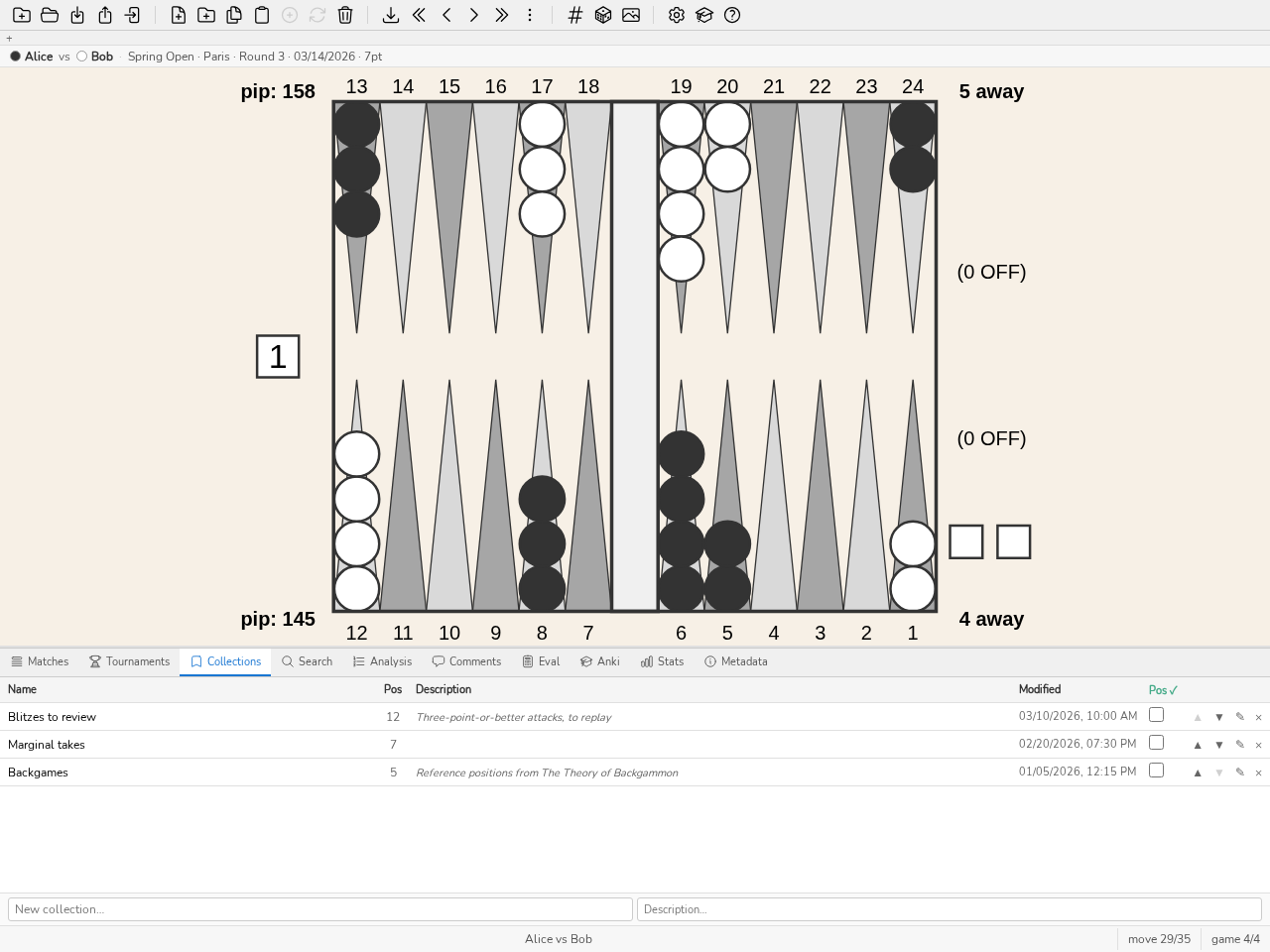
The Collections panel: name, number of positions, description, last modified.
In the Collections, Tournaments, Anki and Transcription panels, the + button in the header, followed by the name of what it creates (+ New collection, + New tournament, + New deck, + New transcription), is the single creation gesture: it opens the input field, which Esc or Cancel closes in the Collections and Tournaments panels. In the match list, the ⌨ icon opens the match’s transcription and the ✎ icon corrects its metadata.
The Collections panel (CTRL-B) manages collections of positions. Collections can be created, renamed and deleted. Positions can be added to them or removed (Del key, confirmation asked). Double-click a collection to browse its positions with the LEFT and RIGHT keys. The ss command searches among the positions of the open collection; Esc then returns to the collection (see Search Panel). The order of the collections, and of the positions within a collection, can be changed by drag and drop. Press CTRL-B or run the collection command to show or hide the panel.
In the header of an open collection, the number of positions is a link that puts them back in the browsing, from the first; the in this collection box adds the displayed position to it or removes it. An empty list offers + New collection.
The Pile is the collection for the “review later” gesture: a double-click outside the board, the b key or the bookmark button of the toolbar puts the displayed position on the Pile, and the same gesture takes it off. A bookmark in the corner of the board shows that the position is on it, with no other message. The gesture works wherever a position is displayed: review, search, edit mode, Eval, Transcription, quiz, Duel. Resetting the board goes through the right-click menu (see board menu). The Pile is an ordinary collection — renamed, reordered, exported, emptied like any other; it is created on first use, and created again if it was deleted. A position that is not yet in the library (a draft of the search or evaluation board) is written there on the spot, like a position brought on its own, then put on the Pile. The command line makes the same gesture with collection pile.
A collection can be living: its content is no longer a hand-made list but the result of a search, re-evaluated every time it is opened. The ◇ button at the head of the collection makes it living with the last search run; ◈ says it already is, and the same button gives it back its list. Nothing is destroyed by making it living: the positions it held are still there when you go back.
The ❄ button, shown on a living collection, freezes it: the positions the search selects at that moment become the content of an ordinary collection, in the order of the search, and the query is cleared. The positions it held before becoming living are replaced.
A living collection whose query carries a token this version no longer knows refuses to open, and says so, rather than returning the whole database. That is the one failure a saved filter must not have: widening in silence.
A living collection stays living in an export of the database: its query travels with it and is re-evaluated, on the recipient’s side, against the positions in the file. When the export carries the positions of the collections, it carries those the query selects at the moment of the export, up to the ceiling of 5,000 positions. A query that names positions, matches or tournaments by their number is rewritten onto the file’s numbers; if one of them stays out of the file, the collection leaves frozen, with the positions the query selects at the moment of the export.
A spaced-repetition deck based on a living collection replays its query each time a session is opened: the positions that the search has selected since last time enter it, and the cards already there keep their scheduling. An evaluation is bounded by a ceiling of 5,000 positions; when the query selects more, only the first ones, in the order of the search, feed the deck, and the status bar says so along with the actual number of selected positions.
The Suggest… button in the header opens the reference positions: a short list of positions to study, chosen among your errors so that each one summarises many. Studying the ten worst errors often yields ten variants of the same problem, or singular positions that teach nothing about the others; a reference position sits at the centre of several of your errors, of similar structure, and its lesson serves them all.
The errors are those of the study plan: measured in MWC and sorted by family (game plan, nature, theme). Two errors of a family are neighbours if they are at most 12 checker-steps apart in
likedistance; a cube error has as neighbours only those of the same score.Each position is worth the recoverable MWC (loss minus difficulty) of its neighbours and of itself: what its lesson would bring if it served them all. A tight lesson (the second choice costs less than half an error) or an unstable verdict (another depth or a rollout says something different) counts for half; a rollout that confirms is flagged. The figure at the head of each line is the MWC covered; the reason gives the figure counted when the lesson counts for half.
The list is varied: a selected position covers its neighbours, which no longer bring anything to the following ones, and no suggested position is a near-duplicate of another. A position already handled — commented, in a collection, an Anki card or marked “studied” — is never suggested, and its neighbours are considered covered.
The scope is the whole database, the current match, a tournament or the filter of the Statistics panel; the player is that of this filter. The size is 10, 20 or 50 positions. Each line gives its family, its score if it is a cube position, the MWC it covers and its reason: how many errors and matches it summarises, the size of its family among your decisions, its own recoverable, the gap to the second choice. Clicking a line opens the position; the checked boxes become in one click a collection, an Anki deck or a quiz. On the command line: blunderdb collection suggest (see collection — Manage collections).
Lessons
A lesson is a sequence of steps that a coach writes once for a student and hands over in a database file (see the lesson export command in Command Line Interface (CLI)). Each step has a title, a text and can show a collection, a position, both or neither. The le command lists the database’s lessons in the status bar; le 2 opens lesson 2; le edit opens the lesson editor.
A reading bar then appears above the board: lesson name, step number, title, then the text. Previous and Next change step; the step brings onto the board the collection or position it shows, which you then browse with the usual gestures. Close leaves the lesson. A step whose collection or position has been deleted keeps its text.
The Step done box in the bar marks the current step as done; a second click removes the mark, and the bar counts the steps done. It is the only gesture that writes anything: reading a lesson, changing step or opening it records nothing, neither the step reached nor the opening. The mark is written into the open database, the student’s, and no export carries it. Importing a file that contains a lesson creates it; a lesson of the same name already present is left untouched.
The lesson editor opens with le edit (le edit 2 on lesson 2) or with the Edit button of the reading bar. On the left, the list of lessons and a field to create one; on the right, the name and description of the chosen lesson, then its steps. Each step has a title, a text, a collection chosen from the list and a position: Current position attaches the position shown on the board, Detach the position removes it. Save the step writes its changes; the arrows move it one place; Add a step adds one at the end. Read closes the editor and opens the lesson at its first step; Export as a web page saves the lesson as a single self-contained HTML file (title, description, each step with its text and board, the stored analysis of each position folded away like a quiz answer, the watermark origin at the foot), ready to publish as it is: it holds no script and makes no network call; Delete erases the lesson and its steps, without touching the collections or positions they showed. Lessons can also be created and edited from the command line or through the API (Lessons).
A backup — the export of the whole library from the export window or by the command line — carries all the lessons. In the export window, the Lessons row chooses them one by one: each ticked lesson leaves with the collections and positions its steps show, and the file can be watermarked or password-protected (.dbx) like any export. Without this box, a partial export (a selection of positions, collections or matches) does not carry the lessons.